
Cricfy Not Working? Fix Loading, Buffering and App Errors
Cricfy may stop loading, keep buffering, show a black screen, close unexpectedly or fail to install. Most problems are connected to the internet connection, app cache, Android compatibility, device settings or an unavailable external content source.
This guide explains how to identify the real cause and apply the correct fix without immediately resetting your phone or changing unnecessary settings.
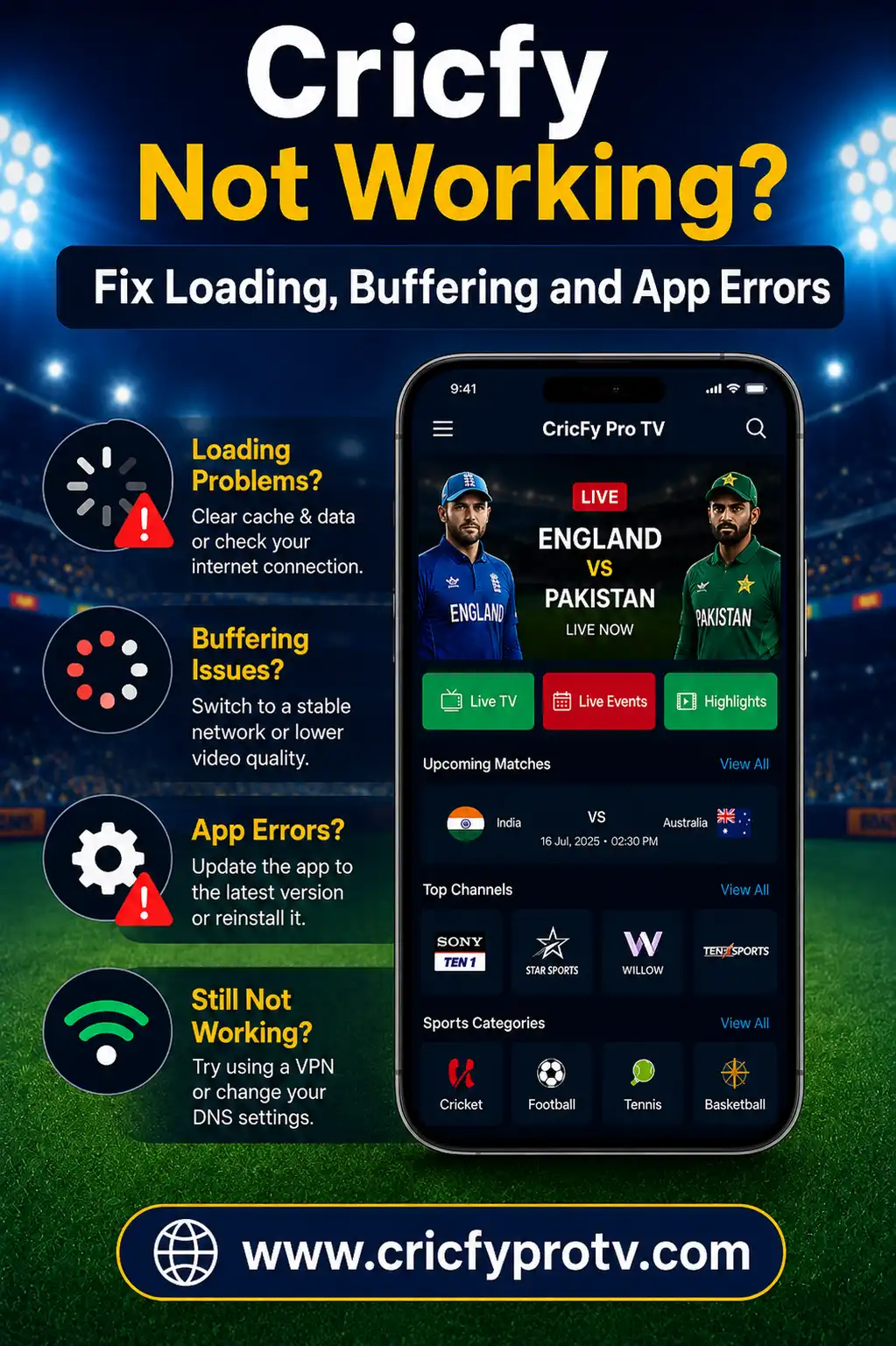
Why Is Cricfy Not Working?
Cricfy may not work because of weak internet, damaged cache, insufficient storage, an outdated or incompatible app build, blocked permissions, Android WebView problems or a temporary external server issue. Start by restarting the app, testing another network and clearing the cache.
First Identify What Is Not Working
Do not reinstall the app immediately. First check whether the problem affects the entire application or only one match, channel or category.
App Will Not Open
This usually points to app data, compatibility, storage or installation problems.
One Event Fails
The selected external source may be unavailable while the rest of the app continues to work.
Everything Fails
Check your internet, app version, device clock and possible external service interruption.
Test two or three different sections. If only one item fails, changing your phone settings may not solve the problem.
Try These Quick Cricfy Fixes First
Complete these steps in order. Test the app after each step so you know which change solved the problem.
Force Close Cricfy
Open recent apps, remove Cricfy and launch it again. On Android, you can also open App Info and tap Force Stop.
Check Your Internet
Open another website or video. If other services are also slow, the problem is probably your connection rather than Cricfy.
Switch Networks
Test Wi-Fi and mobile data separately. Restart your router when Wi-Fi appears connected but does not load content.
Restart the Device
A restart clears temporary processes, reconnects network services and can resolve a frozen app.
Clear Cricfy Cache
Go to Settings, Apps, Cricfy, Storage and tap Clear Cache. Do not clear all data yet.
Check Free Storage
Remove unused files or apps when your device storage is nearly full. Apps need free space for cache and temporary data.
Set Date and Time Automatically
Incorrect date or time can cause secure connection errors. Enable automatic date, time and time zone.
Test Another Category
If another category works, the original event or external source may be temporarily unavailable.
Cricfy Stuck on Loading Screen
If Cricfy remains on the logo, loading circle or home screen, the app may be unable to retrieve information from an external source.
Try the following:
- Force stop the app and open it again.
- Switch between Wi-Fi and mobile data.
- Turn Airplane Mode on for 15 seconds, then off.
- Clear the Cricfy cache.
- Disable Data Saver temporarily.
- Allow background and unrestricted data use.
- Set your device date and time automatically.
- Restart the phone or tablet.
If every section stays on loading even after changing networks, the external service may be temporarily unavailable.
How to Fix Cricfy Buffering
Buffering does not always mean the app is broken. Live video requires a stable connection, and popular events may place heavy demand on external sources.
Improve the Connection
Move closer to your router, disconnect unused devices or use Ethernet on a supported television or computer.
Reduce Video Quality
Select a lower quality when available. A stable lower-resolution stream is better than repeated pauses.
Close Other Apps
Downloads, cloud backups, games and other video apps may consume bandwidth or device memory.
Try Another Available Source
When one source buffers but another works, the original source is likely overloaded.
Reinstalling the same app will not repair a slow or overloaded external video source.
Cricfy Shows a Black Screen
A black screen can occur because of a frozen video player, graphics compatibility, Android WebView, orientation problems or an unavailable source.
Use these fixes:
- Press Back and reopen the selected content.
- Rotate the phone between portrait and landscape.
- Force close Cricfy.
- Clear the app cache.
- Update Android System WebView and Chrome.
- Restart the device.
- Disable screen-recording or overlay apps temporarily.
- Test another category or source.
If sound plays but the screen remains black, the issue is more likely connected to video rendering or player compatibility.
Cricfy Keeps Crashing or Closing
Repeated crashes may come from corrupted cache, low memory, insufficient storage, an incompatible build or a problem with Android components.
Try this order:
- Force stop Cricfy.
- Clear its cache.
- Restart your device.
- Close memory-heavy apps.
- Free internal storage.
- Update Android System WebView and Chrome.
- Check whether your Android version is supported.
- Reinstall only when the earlier steps fail.
Clearing app data may reset preferences and remove locally stored app information. Try clearing cache before clearing all data.
Cricfy APK Will Not Install
Android installation can fail before the app opens. Use the error message to identify the cause.
| Error | Likely Cause | Recommended Action |
|---|---|---|
| Parsing error | Incomplete file or unsupported Android version | Delete the file, obtain a fresh copy from the original source and check compatibility. |
| App not installed | Storage, signature, package or compatibility conflict | Free storage and check whether another version is already installed. |
| Installation blocked | Browser or file manager lacks permission | Temporarily allow that specific app under Install unknown apps. |
| Package appears invalid | Damaged, renamed or incomplete package | Delete it and return to the original source where the app was obtained. |
| Update not installed | Different app signature or package | Back up important data and confirm whether the existing version must be removed. |
How to Fix “There Was a Problem Parsing the Package”
A parsing error means Android could not correctly read or accept the application package.
Common reasons include:
- The file did not download completely.
- The APK is damaged.
- The app does not support your Android version.
- The file was renamed incorrectly.
- The package was altered by an external source.
Delete the failed file, restart the browser and return to the original source from which you obtained the app. Confirm the file type and Android requirements before opening it again.
Do not use an online “APK repair” or “APK converter” website that asks you to upload a package or install unrelated software.
How to Fix “App Not Installed”
The App Not Installed message can appear even when the APK itself opens correctly.
Check these causes:
- Not enough internal storage.
- An existing Cricfy build uses a different signature.
- The package is not compatible with your processor.
- The Android version is unsupported.
- The package is incomplete.
- A work profile or security policy blocks installation.
Free storage and restart the device first. When an older version is installed, avoid removing it until you understand whether its locally stored data will be lost.
Check Cricfy Permissions and Data Access
Cricfy needs internet access to retrieve app information and available content. Android settings may limit network access in the background.
Open Settings, Apps and Cricfy, then check:
- Wi-Fi and mobile data are allowed.
- Background data is enabled when needed.
- Data Saver is not restricting the app.
- Battery optimization is not stopping playback.
- Storage or media access is reasonable and necessary.
Be cautious if an app requests contacts, messages, call history or permissions unrelated to its stated purpose.
Fix Cricfy Network Connection Errors
Your device may show Wi-Fi as connected even when internet access is unstable.
Try these network checks:
- Open another website or video service.
- Restart the Wi-Fi router.
- Forget the Wi-Fi network and reconnect.
- Switch temporarily to mobile data.
- Disable Private DNS temporarily if it is misconfigured.
- Disable a VPN temporarily to test normal connectivity.
- Set date and time automatically.
Some networks, workplaces, schools or public Wi-Fi systems may restrict video or unknown application traffic.
Update Android System WebView and Chrome
Some Android apps use Android System WebView or Chrome to display web-based content inside the application.
When these components are disabled or outdated, the app may show a blank page, fail to load or close unexpectedly.
Open Google Play, search for Android System WebView and Google Chrome, and install available updates. Restart the device afterward.
On devices where WebView is integrated with Chrome, updating Chrome may also update the underlying web component.
Check Whether Cricfy Needs an Update
An older build may stop communicating correctly when external systems or Android requirements change.
CricfyProTV does not host app files. Return to the same original source from which you obtained the application and check whether it lists a newer compatible version.
Before updating:
- Confirm the source and developer information.
- Check the file name and version.
- Read the Android compatibility requirement.
- Keep enough storage available.
- Avoid packages bundled with unrelated software.
Do not install a random file only because its name includes “latest,” “premium” or “fixed.” Verify the source and package details.
Cricfy Not Working on Android TV or Fire TV
Television problems may come from limited storage, touch-focused controls, weak Wi-Fi or incompatibility with the device’s Android or Fire OS version.
Try these fixes:
- Restart the television or streaming device.
- Clear the Cricfy cache.
- Remove unused apps and old APK files.
- Use Ethernet when available.
- Lower video quality.
- Connect a compatible mouse if remote navigation fails.
- Check whether the app appears under all installed apps.
Read the complete Cricfy Android TV and Fire TV guide for television-specific installation and remote-control help.
Cricfy Not Working on a Windows PC
Cricfy is an Android app rather than a native Windows program. PC users normally run it through an Android emulator.
If it fails inside an emulator:
- Restart the emulator and Windows.
- Enable hardware virtualization when supported.
- Allocate enough RAM without using all system memory.
- Update the emulator and graphics driver.
- Switch the emulator graphics renderer.
- Try a compatible Android instance.
- Lower emulator resolution.
- Clear the app cache inside the emulator.
Follow the Cricfy for PC guide for the full emulator setup.
How to Know Whether the Cricfy Server Is Down
CricfyProTV does not operate the app’s external servers, so we cannot restart them or guarantee their availability.
A wider service interruption is more likely when:
- Every category fails on multiple networks.
- The same problem appears on another device.
- Reopening and clearing cache do not help.
- The home page loads but every source is unavailable.
- The problem begins during a high-demand event.
In this situation, wait and test again later. Repeatedly reinstalling the app is unlikely to repair an unavailable external service.
What You Should Not Do
Avoid risky shortcuts when troubleshooting Cricfy.
- Do not disable every Android security feature.
- Do not install multiple random APK files.
- Do not enter passwords on unknown “repair” websites.
- Do not install unknown VPN or cleaner apps.
- Do not use an unofficial Windows EXE claiming to be Cricfy.
- Do not reset your entire phone as the first solution.
- Do not approve unrelated contacts or message permissions.
CricfyProTV does not provide APK files by email and does not ask users to complete surveys, install device profiles or provide account passwords.
Use the Correct Cricfy Guide for Your Device
Android Phone
Read the Cricfy Android guide for phone and tablet settings.
Android TV
Use the Android TV and Fire TV guide for big-screen issues.
Windows PC
Review the Cricfy PC emulator guide for Windows troubleshooting.
Cricfy Still Not Working?
If the app still fails after restarting, changing networks, clearing cache, checking storage and updating Android components, the cause may be an incompatible build or an external service interruption.
Note the exact error message, device model, Android version and when the problem started. These details help separate a device problem from a wider app or server issue.
You can report inaccurate instructions or a broken website reference through our Contact Us page . CricfyProTV cannot provide official app support or restore external servers.
Cricfy Not Working FAQs
Why is Cricfy not opening?
Cricfy may not open because of damaged cache, low storage, insufficient memory, an incompatible app build or an Android component problem. Force stop the app, clear its cache and restart the device.
Why is Cricfy stuck on loading?
A loading screen may be caused by weak internet, blocked data access, incorrect date and time or an unavailable external service. Test another network and category.
How do I stop Cricfy from buffering?
Use a stronger connection, reduce video quality, close background downloads and try another available source. High-demand events may temporarily overload external sources.
Why does Cricfy show a black screen?
A black screen can result from a frozen player, graphics compatibility, Android WebView or an unavailable video source. Update WebView and Chrome, clear cache and test another category.
Why does Cricfy keep crashing?
Repeated crashes can come from corrupted cache, low memory, insufficient storage or app incompatibility. Clear cache, restart the device and close memory-heavy apps.
How do I fix the Cricfy parsing error?
Delete the incomplete or damaged APK and return to the original source where you obtained it. Confirm that the package supports your Android version.
Why does Android say Cricfy is not installed?
The message can appear because of insufficient storage, an existing package-signature conflict, incompatible hardware or an unsupported Android version.
Does clearing Cricfy cache delete everything?
Clearing cache normally removes temporary files. Clearing all app data may reset preferences and locally stored information.
Is the Cricfy server down?
A wider interruption is possible when every category fails across different devices and internet connections. CricfyProTV does not operate or control external app servers.
Does CricfyProTV provide a fixed APK?
No. CricfyProTV is an independent information website and does not host, repair, email or directly distribute APK files.